• 0 Mein Warenkorb
  • Konto
    • Einloggen
    • Registrieren
    • Passwort vergessen?
  • Kundencenter Home
  • Shop
    • Alle anzeigen
    • AMD Ryzen Dedicated Server
    • AMD EPYC Dedicated Server
    • Intel Dedicated Server
    • Restposten
    • Shared Hosting
    • Hosting Agency
    • Ryzen Performance KVM
    • HA KVM VPS
    • Domain
    • Domain registrieren
    • Domain transferieren
  • Ankündigungen
  • Wissensdatenbank
  • Netzwerkstatus
  • Partner
  • Kontaktieren Sie uns
  • Mehr

Wissensdatenbank

Our shared service delivers a powerful, proven platform that’s perfect for hosting your websites.

  1. Support
  2. Wissensdatenbank
  3. Plesk
  4. General (Plesk)
  5. How to Change View Mode in Plesk

  Kategorien

Backup/Restore
4
Cloudflare (cPanel)
9
CloudLinux (cPanel)
10
cPanel - Control Panel
24
Databases
11
DirectAdmin
48
DNS - Nameservers
6
Domain Management
10
Email
17
FTP
9
Installing a Control Panel
6
Mail Filters & SPAM
8
Mobile
11
Others
3
PayPal
7
Plesk
47
Security
10
SiteWorx (Control Panel)
58
Softaculous
69
SolusVM
18
SSL
5
Virtualizor
19
Webhosting
1
WHM
18
WordPress
17

  Kategorien

  Support

Supporttickets
Ankündigungen
Wissensdatenbank
Downloads
Netzwerkstatus
Ticket öffnen

How to Change View Mode in Plesk Drucken

  • 0


You can change View Mode in Plesk in the following way.


1. Log in to your Plesk account.


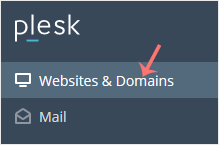
2. Click Websites & Domains from the Sidebar Menu.
 

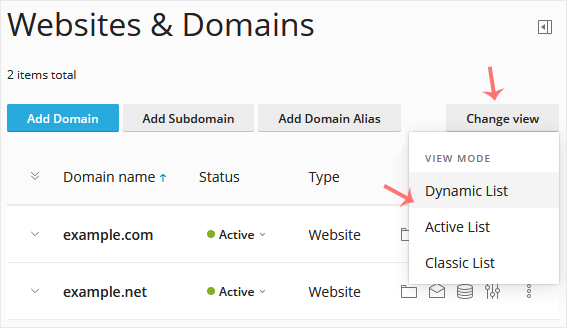
3. If the view mode is Dynamic List, click on Change View on the right side and switch to your preferred mode.
 

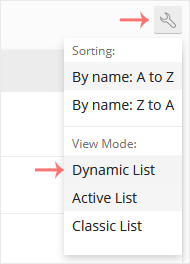
However, if the view mode is Active or Classic List, click on the wrench icon to change it.

War diese Antwort hilfreich?

Verwandte Artikel

How to Log in to Plesk A tutorial on how to access the Plesk Control Panel.   After you place an order and make a... How to Edit a File in the Plesk File Manager   1. Log in to your Plesk account. 2. Click on Files from the Sidebar Menu.   3. Under File... How to Change the Password of a Plesk Account   Follow these steps to change your Plesk account password.   1. Log in to your Plesk account.... How to Reset a Plesk's Account Password   Follow these steps to reset your Plesk account password.   1. Open your Plesk login URL.... How to Update a Plesk Account's Email Address   Follow these steps to change your Plesk contact email address.   1. Log in to your Plesk...
« Zurück

  Support

Supporttickets
Ankündigungen
Wissensdatenbank
Downloads
Netzwerkstatus
Ticket öffnen

Premium quality Unbeatably flexible!

We do not bind you to contracts, we want you to be a customer out of conviction. All servers can be canceled with immediate effect up to one day before the next billing date.

Angebotsübersicht

Concentrate on your business. We take care of the technology!

Navigation

  • Home
  • Customer Panel
  • Support
  • Create a Ticket
  • Contact us

Useful Links

  • Webhosting Overview
  • Agency server
  • Domains
  • Performance VPS
  • HA KVM VPS
  • Dedicated Server

Contact us

  • (+49) 9360 3589995
  • kontakt@nerdscave-hosting.de
  • noc@nerdscave-hosting.de
  • abuse@nerdscave-hosting.de
  • Kontaktieren Sie uns
  • AGB

Copyright © 2026 Nerdscave Hosting. All Rights Reserved.


Lädt...
Lädt...
Sprachwahl
Nederlands
English
Français
Deutsch

Währung wählen

€ EUR
$ USD

Generate Password

Please enter a number between 8 and 64 for the password length