• 0 Mein Warenkorb
  • Konto
    • Einloggen
    • Registrieren
    • Passwort vergessen?
  • Kundencenter Home
  • Shop
    • Alle anzeigen
    • Shared Hosting
    • Hosting Agency
    • Ryzen Performance KVM
    • HA KVM VPS
    • Domain
    • SSL Zertifikate
    • Domain registrieren
    • Domain transferieren
  • Ankündigungen
  • Wissensdatenbank
  • Netzwerkstatus
  • Partner
  • Kontaktieren Sie uns
  • Mehr

Wissensdatenbank

Our shared service delivers a powerful, proven platform that’s perfect for hosting your websites.

  1. Support
  2. Wissensdatenbank
  3. CloudLinux (cPanel)
  4. How to Change the PHP Version via CloudLinux Selector in cPanel

  Kategorien

Backup/Restore
4
Cloudflare (cPanel)
9
CloudLinux (cPanel)
10
cPanel - Control Panel
24
Databases
11
DirectAdmin
48
DNS - Nameservers
6
Domain Management
10
Email
17
FTP
9
Installing a Control Panel
6
Mail Filters & SPAM
8
Mobile
11
Others
3
PayPal
7
Plesk
47
Security
10
SiteWorx (Control Panel)
58
Softaculous
69
SolusVM
18
SSL
5
Virtualizor
19
Webhosting
1
WHM
18
WordPress
17

  Kategorien

  Unterstützung

Supporttickets
Ankündigungen
Wissensdatenbank
herunterladbare
Netzwerkstatus
Ticket öffnen

How to Change the PHP Version via CloudLinux Selector in cPanel Drucken

  • 10


You can use CloudLinux's Select PHP Version to change your website's PHP Version. CloudLinux provides various PHP Versions to choose from.


1. Log in to your cPanel account.

2. In the Software section, click on Select PHP Version.

cP-CL-Select-PHP-Version-icon.gif


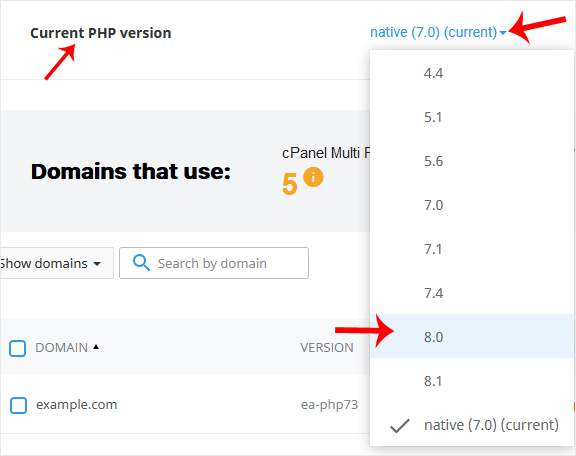
3. To the right side of the Current PHP version, click on the drop-down menu and choose the version you want to use.
cP-CL-current-PHP-version-option.gif


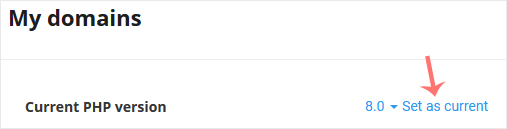
4. Click Set as current.

cl-set-as-PHP-version.gif


War diese Antwort hilfreich?

Verwandte Artikel

How to Increase PHP's upload_max_filesize Value Using CloudLinux Selector in cPanel   You can modify PHP's upload_max_filesize as per your needs using CloudLinux's PHP Selector in... How to Increase PHP's post_max_size Value Using CloudLinux's Selector in cPanel   You can modify PHP post_max_size as per your needs using CloudLinux PHP Selector in cPanel.... How to Enable or Disable PHP Extensions Using the CloudLinux Selector in cPanel   You can use CloudLinux Selector to enable or disable available PHP extensions in cPanel.... How to Enable or Disable PHP's allow_url_fopen Using CloudLinux Selector in cPanel   You can use CloudLinux Selector to enable or disable the allow_url_fopen directive in cPanel.... How to Enable or Disable PHP's display_errors via CloudLinux Selector in cPanel   Sometimes, we need to debug PHP. Hence, we need to enable display_errors or disable them for...
« Zurück

  Unterstützung

Supporttickets
Ankündigungen
Wissensdatenbank
herunterladbare
Netzwerkstatus
Ticket öffnen

Premium quality Unbeatably flexible!

We do not bind you to contracts, we want you to be a customer out of conviction. All servers can be canceled with immediate effect up to one day before the next billing date.

Angebotsübersicht

Concentrate on your business. We take care of the technology!

Navigation

  • Home
  • Customer Panel
  • Support
  • Create a Ticket
  • Contact us

Useful Links

  • Webhosting Overview
  • Agency server
  • Domains
  • Performance VPS
  • HA KVM VPS
  • Dedicated Server

Contact us

  • (+49) 9360 3589995
  • kontakt@nerdscave-hosting.de
  • noc@nerdscave-hosting.de
  • abuse@nerdscave-hosting.de
  • Kontaktieren Sie uns
  • AGB

Urheberrecht: © 2026 Nerdscave Hosting. Alle Rechte vorbehalten.


Lädt...
Lädt...
Sprachwahl
العربية
Azerbaijani
Català
中文
Hrvatski
Čeština
Dansk
Nederlands
English
Estonian
Persian
Français
Deutsch
עברית
Magyar
Italiano
Macedonian
Norwegian
Português
Português
Română
Русский
Español
Svenska
Türkçe
Українська

Währung wählen

€ EUR
$ USD

Passwort generieren

Bitte geben Sie eine Zahl zwischen 8 und 64 für die Passwortlänge ein